Plugin Configuration Format
The configuration format for the plugins on EPI is composed of three sections per line: runlevel(s), plugin path, and switch state (on/off), separated by a comma.
It also accepts line comments with // and #.
Runlevels
The available runlevels are:
vsh/xmb: VSH runlevel — Plugins configuration for XMB/VSHumd/psp/umdemu: UMD runlevel — Plugins configuration for retail application and gamespops/ps1/psx: POPS runlevel — Plugins configuration for PS1 application and gameshbw/homebrew: Homebrew runlevel — Plugins configuration for homebrew application and gamesapp/game: UMD + Homebrew — Plugins configuration for any PSP application or game; retail or homebrewalways/all: All runlevels — Plugins configuration for all runlevels⟨TITLE ID⟩: Application/Game specific runlevel — Plugins configuration for a specific application that has the specified ID⟨PATH⟩: Path-specific runlevel — Plugins configuration for an application or game in the specified path. This is more advancedcfw=??: Custom Firmware runlevel — Plugins configuration to only run in the specified vPSP Custom Firmware
You can specify more than one runlevel for a specific plugin by separating with a space character, more on example.
Plugin Path
The plugin path can be an absolute path or a relative path.
The absolute path must be a PSP Memory Stick absolute path, i.e. starting with ms0:/. The relative path starts on ms0:/seplugins/, e.g. if the file is on ms0:/seplugins/my_plugin.prx, you can use my_plugin.prx.
Switch state
The switch state defines whether the plugin is enabled or not. The accepted “On” values are on, enabled, true, and 1; and the “off” values are off, disabled, false, and 0.
example
# VSH Example
xmb, ms0:/seplugins/category_lite.prx, on

# PSP retail games example
psp, ms0:/seplugins/TempAR/tempar.prx, on

# Homebrew-only example
hbw, ms0:/seplugins/example.prx, off

# POP example
pops, ms0:/seplugins/cwcheat/cwcheatpops.prx, on

# Any PSP (game and homebrew)
app, ms0:/seplugins/example.prx, off

# Always
always, ms0:/seplugins/example.prx, off

# CFW
always cfw=ark, ms0:/seplugins/example.prx, off

# Title ID example
ULES00151, ms0:/seplugins/gta_remastered.prx, on

# Path example
ms0:/ISO/my_iso.iso, ms0:/seplugins/example.prx, off
disc0:/PSP_GAME/USRDIR/ys1.bin, ms0:/seplugins/example.prx, off

# Relative path example
psp, cwcheat/cwcheat.prx, off

# Multiple runlevels
ULUS10505 ULJM06213, ms0:/seplugins/khbbs_remastered.prx, on

# You can also disable plugins for certain applications
# Enable on every game
psp, ms0:/seplugins/cwcheat/cwcheat.prx, on
# This will filter out GTA LCS (US) and GTA VCS (EU)
ULUS10041 ULES00502, ms0:/seplugins/cwcheat/cwcheat.prx, off
important
Before version 8.0.0, EPI used another format and files for the plugins
Homebrew plugins used to be put in one of three files:
- In
/pspemu/seplugins/VSH.TXTfile for the plugin to loaded on XMB/VSH - In
/pspemu/seplugins/GAME.TXTfile for the plugin to be loaded on PSP games and homebrews - In
/pspemu/seplugins/POPS.TXTfile for the plugin to loaded on PS1 games and homebrews
And following the format of ⟨PLUGIN PATH⟩ ⟨0 or 1⟩ per plugin.
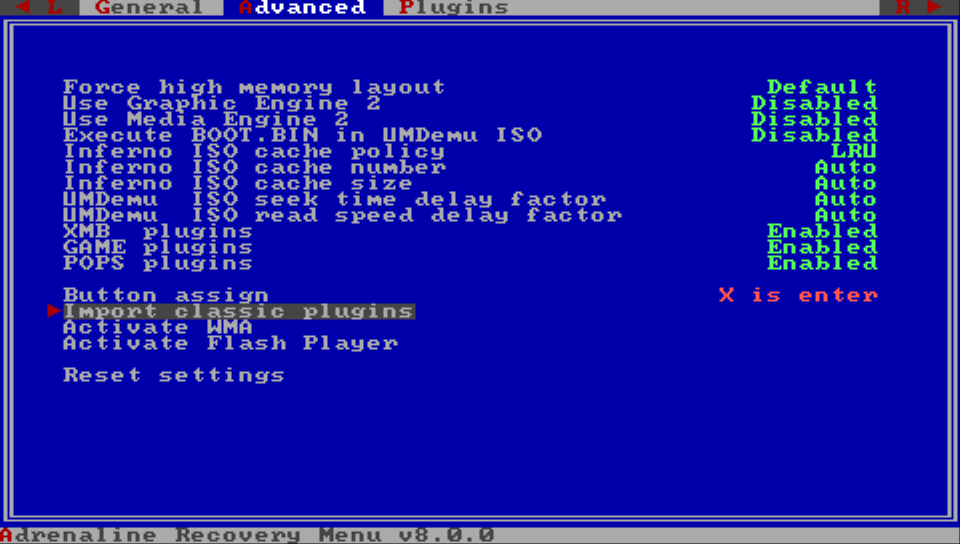
If you just updated from the previous version, EPI provides an easy way to import the old style to the new:
- Open Recovery Menu
- Go to the
Advancedsection - Select and click on
Import classic plugins