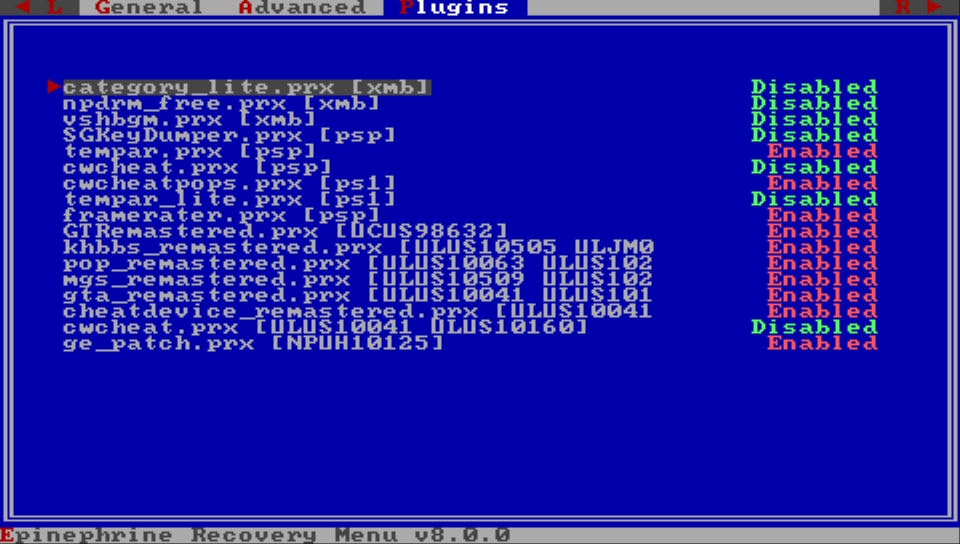
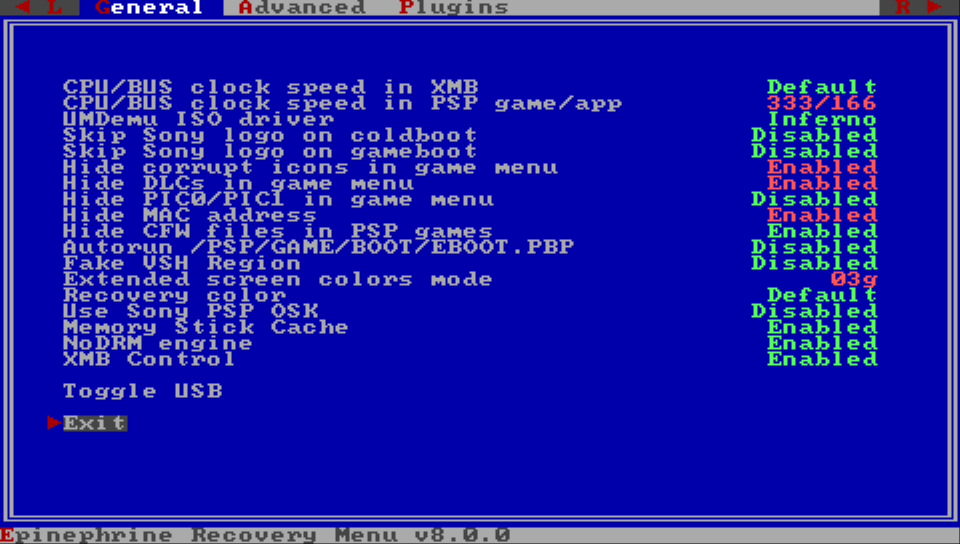
PSP Plugin
PSP plugins are small programs (usually .prx files) that add new features or modify the behavior of the PSP system or games.
Epinephrine should be compatible with most of the plugins made for classic PSP CFW, but incompatibilities may happen. Plugins that replace the VSH Menu (i.e. System Menu, Ultimate VSH Menu, etc) are not supported.
tip
If you find a plugin that is not working, first open an issue on the plugin project issue tracker before opening an issue on the Adrenaline issue tracker.
If you end up opening an issue on Adrenaline’s issue tracker, be mindful that issue resolution depends on many factors, as developers’ time, developers’ interest in the issue, external contributions, and more; as with any hobbyist open-source project.
Launch without plugins
Epinephrine allows launching software without plugins by holding the L trigger while launching apps/games/XMB.
This feature can be useful for quickly checking whether issues with a software are related to broken/bugged plugins or to plugins that don’t interact well with the software.
Adding a plugin
- Put the
.prxfile somewhere on???0:/pspemu/seplugins/directory (create if it doesn’t exist) - Open the
???0:/pspemu/seplugins/plugins.txt(create if it doesn’t exist)
- This is the same file as ARK CFW uses, that will be shared with both CFWs
- Optionally, you can create and use
???0:/pspemu/seplugins/EPIplugins.txtto have a separate plugin configuration file from ARK
-
Add to the configuration line in the general format:
⟨RUNLEVELS⟩, ⟨PLUGIN PATH⟩, ⟨on/off⟩- Example:
psp, ms0:/seplugins/my_plugin.prx, on - You can find detailed information on the format on the next page
- You can find a configuration example here
- Example:
important
Before version 8.0.0, EPI used another format and files for the plugins
If you just updated from the previous version, EPI provides an easy way to import the old style to the new:
- Open Recovery Menu
- Go to the
Advancedsection - Select and click on
Import classic plugins
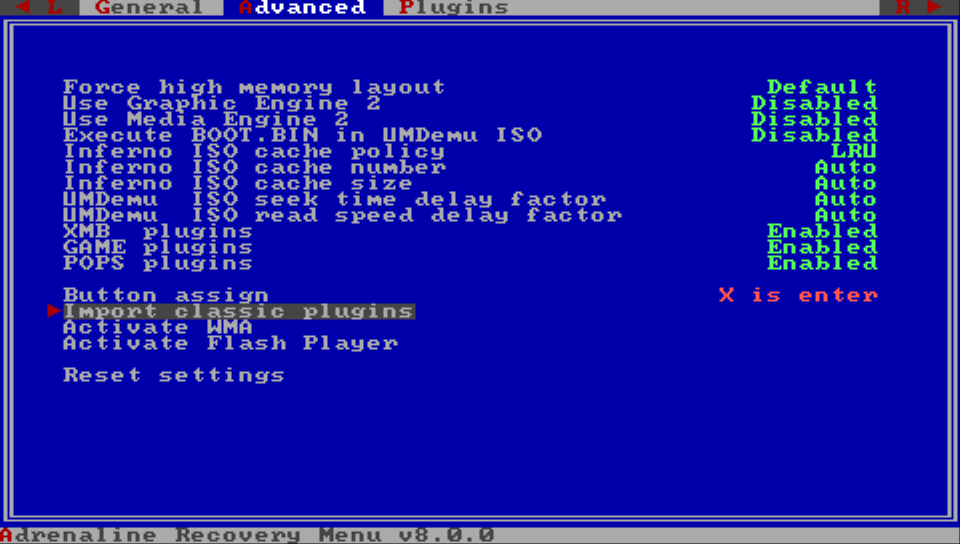
Managing Plugins
Epinephrine offers two ways to manage plugins already added.
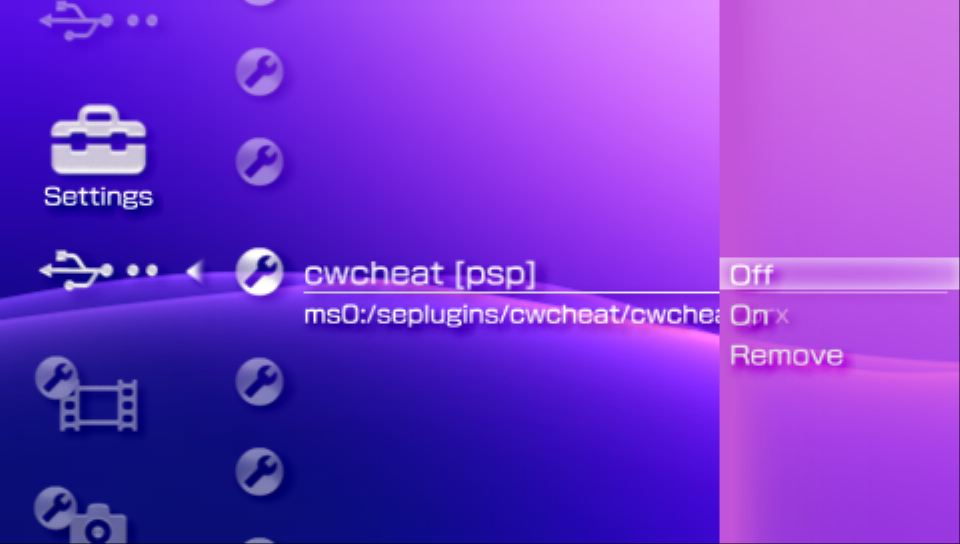
First method: XMB Settings
-
On XMB, go to the
Settings -
Find the
★ Plugins Managerand the confirmation button, and a list of added plugins will show up -
Select the plugin, click the confirmation button.
-
Select the state (
on/off/remove), confirm with the confirmation button.- The
removeoption will remove the line from the configuration file and restart the system
- The
-
Return to save configuration.
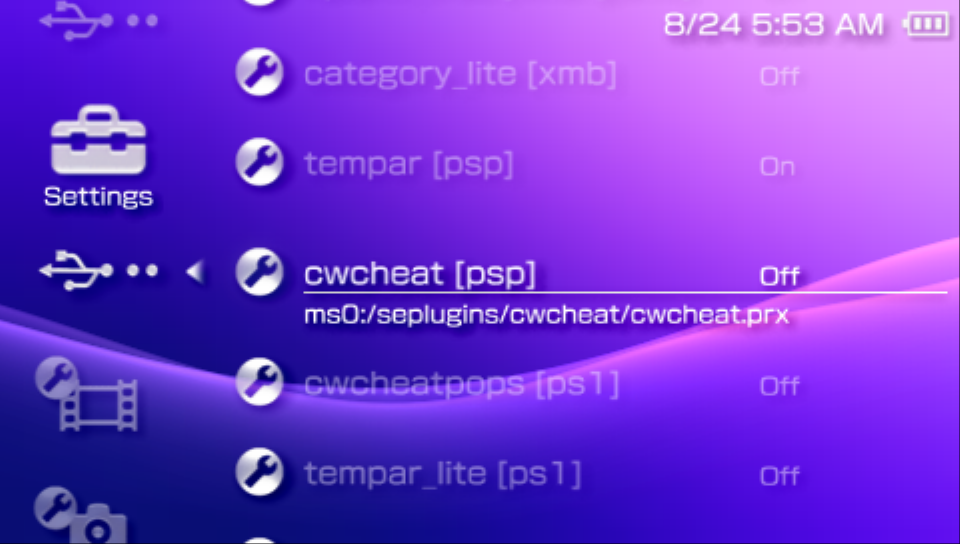
warning
Modification of the plugin state on any plugin that has XMB/VSH runlevel (xmb/vsh) needs to restart the XMB/VSH to take effect.
Second method: Recovery Menu
- Open Recovery Menu
- Go to the
Pluginssection - Go over your plugins and use
←/→to select the plugin state - Go back to the
Generalsection - Exit the Recovery Menu